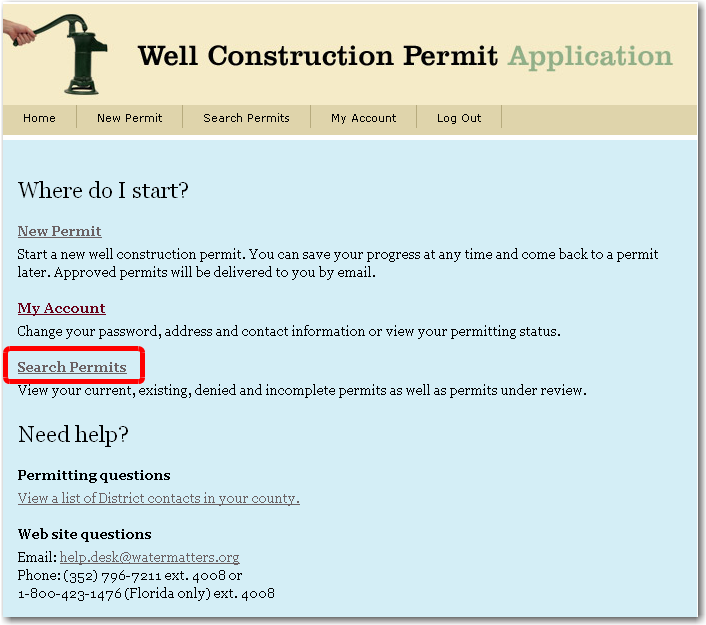
The Search Permits page is accessed by clicking the Search Permits link, shown below:
After clicking the Search Permits link, the Search Permits page loads, and offers the following options:
Make Additional Payments
To search for permits, use any of the filters below, and click the Search button. The number of records found will display in red below the Search button, as shown below:
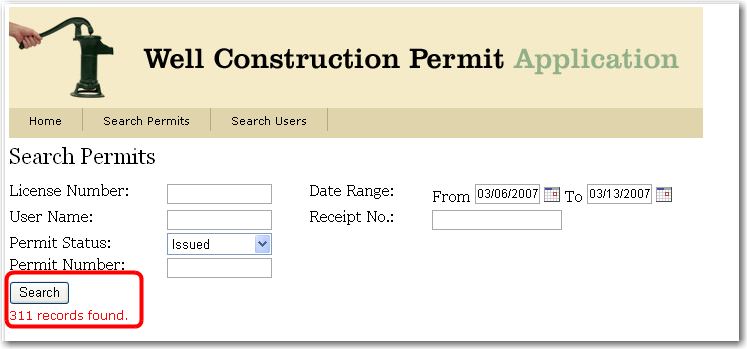
To retrieve a saved application, change Permit Status to Incomplete, and then click the Search button. A list of Incomplete applications displays, as shown below:
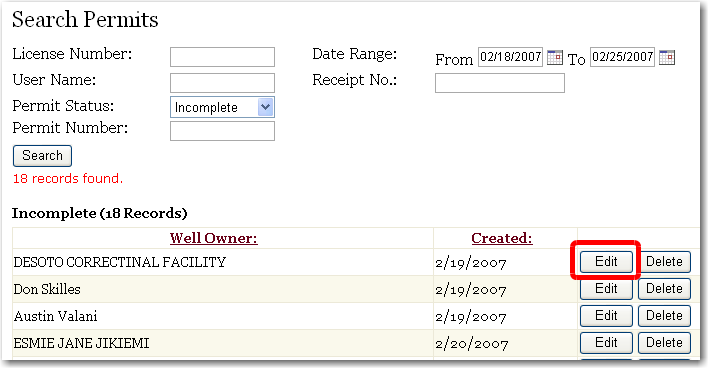
To retrieve a saved application, click the Edit button associated with the Well Owner of the incomplete application.
The Step 1 of 5: Owner Information Tab loads, and allows you to complete your application.
To delete a saved application, change Permit Status to Incomplete, and then click the Search button. A list of Incomplete applications displays, as shown below:
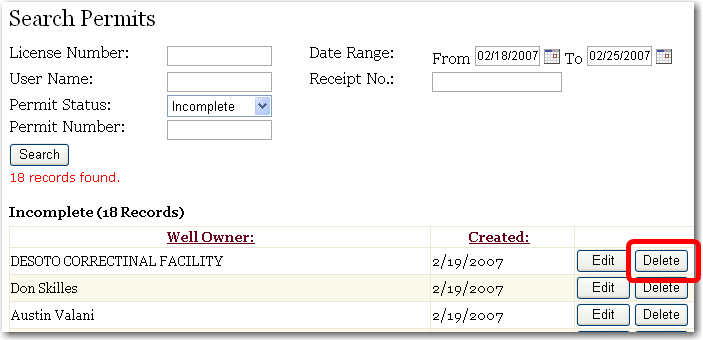
To delete a saved application, click the Delete button associated with that Owner Name for that incomplete application, and the application will be deleted.
To request an extension of time, change the Permit Status to Issued, and then click the Search button. A list of Issued applications displays, as shown below:
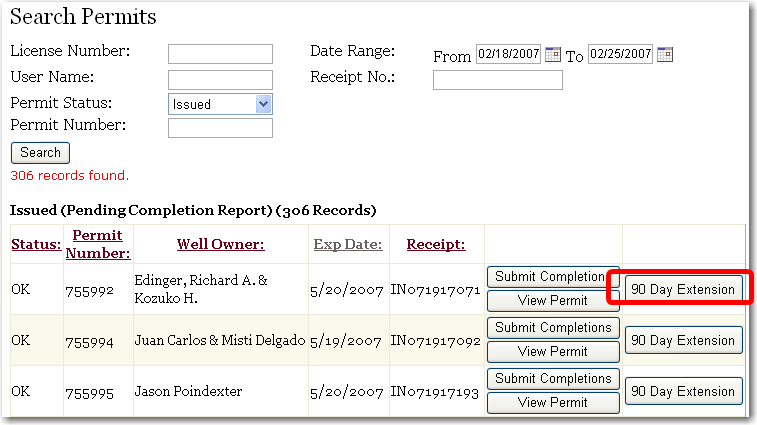
To request an extension of time, click the 90 Day Extension button as shown above. The following window opens:
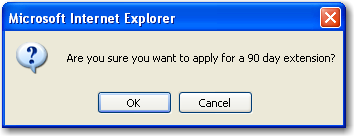
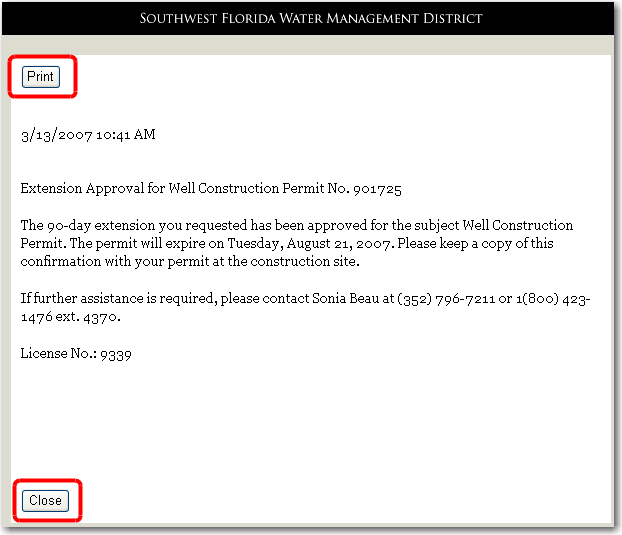
Click the OK button, and the following text appears next to the permit:
The Extension Approval page loads, as shown below. To print the Extension Approval page, click the Print link at the top of the page.
To view historical documents for permits that have already been completed, enter the permit number into the Permit Number field, and click the Search button. The permit will display as shown below:
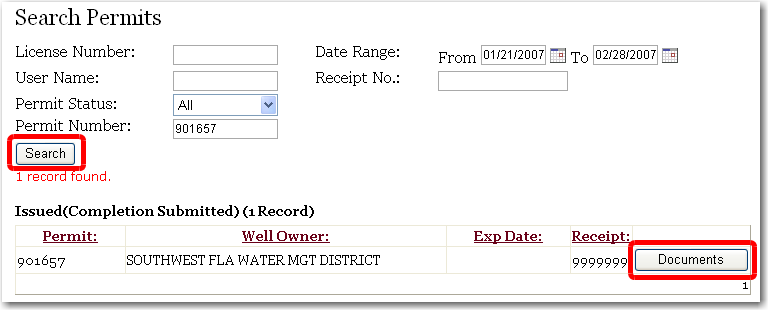
Click the Documents button and a list of documents for that permit in the District's imaging system loads, as shown below.
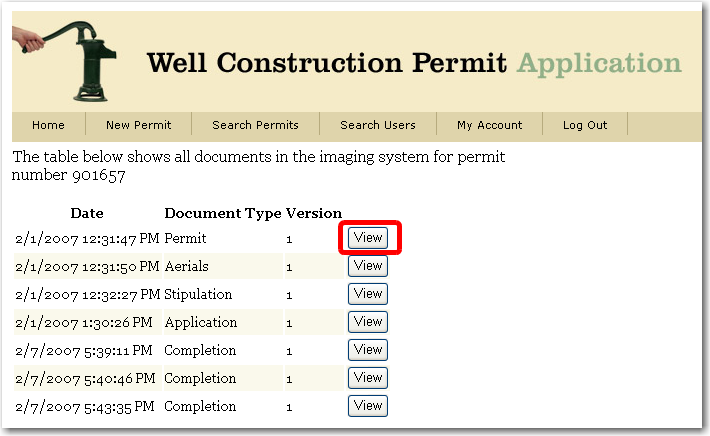
Click the View button associated with a document to view that document. A new window opens and loads that document into Windows Picture and Fax Viewer OR the image viewer currently installed on your computer. See example below:
